Infrared Tracker
A real-time object tracking system that uses Azure Kinect or Orbbec Femto Bolt cameras, built with Unity and Node.js

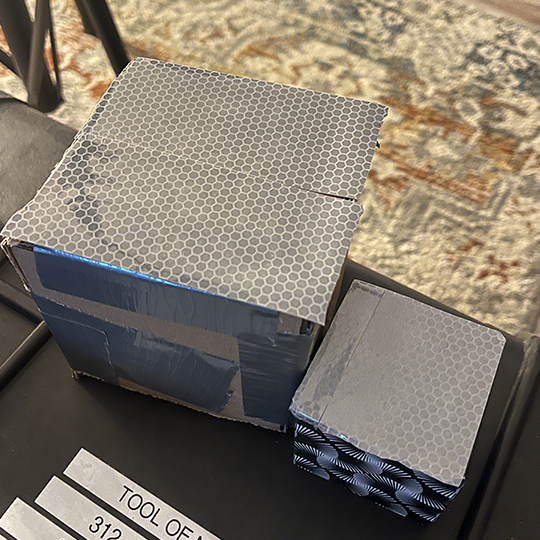
To test you can use Infra Red reflective tape on the object you want to track.
Overview
This project provides a complete infrastructure for infrared object tracking, consisting of three main components:
- Tracker - A Unity-based application that processes camera input and generates tracking data
- Tracker Server - A Node.js WebSocket server that handles real-time data distribution
- Tracker Client - A Unity-based demo client that visualizes the tracking data
Architecture
The system uses a WebSocket-based architecture for real-time communication:
- The Tracker captures and processes camera data, sending tracking information to the server
- The Tracker Server acts as a central hub, receiving data from the Tracker and broadcasting it to connected clients
- Clients can subscribe to the tracking data feed using WebSocket connections
Integration
While we provide a demo Unity client, you can build custom clients using any technology that supports WebSocket connections. This makes the system highly flexible and easy to integrate with existing applications.
Supported Hardware
- Azure Kinect
- Orbbec Femto Bolt
The tracker can run without hardware. It can use Kinect Azure pre-recorded files.
Download a test video file here:
Running binaries
Download the binaries here:
https://github.com/wimvanhenden/InfraRedTracker/releases/tag/v1
The tracker server is not a binary, that is a nodejs websocket server.
Tracker
Tracker Configuration
Navigate to the StreamingAssets/config.json file and configure:
- Set IP address and port to match tracker server configuration
- Assign unique IDs for each tracker when using multiple cameras
- Set correct camera index (starting from 0) when using multiple cameras
- Optionally specify an absolute path to a prerecorded Kinect Azure MKV file for testing
Tracker UI controls
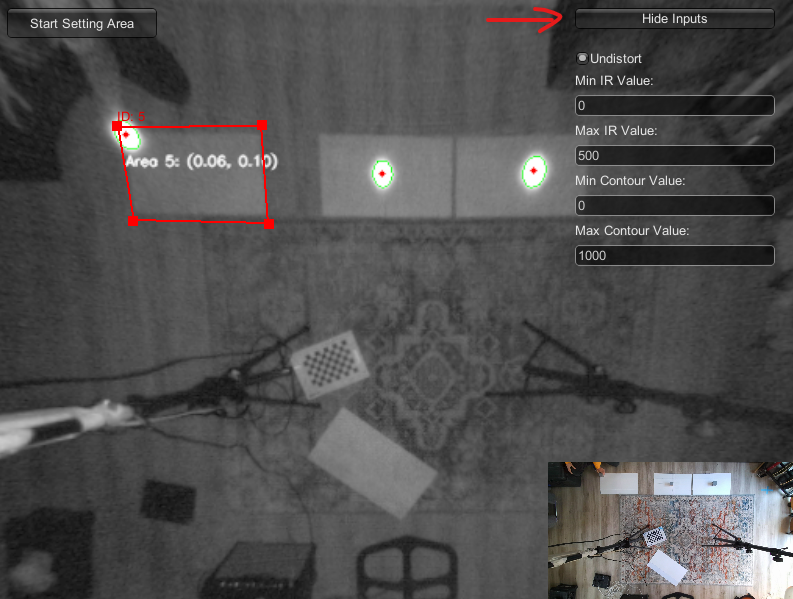
Use "Show/Hide Inputs" for advanced controls
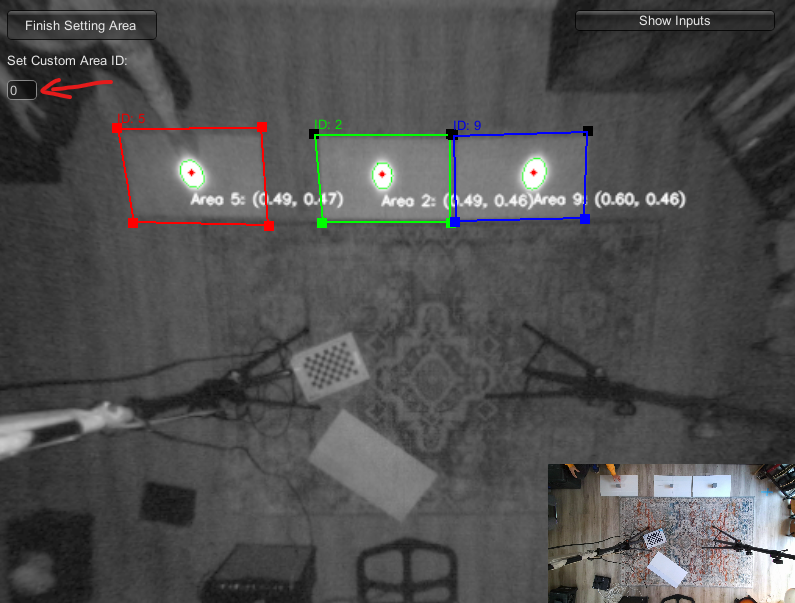
Create tracking areas:
- Click "Start Setting Area" button
- Enter a unique ID in the "Set Custom ID" field
- Use left mouse click to define area corners
- Up to 4 tracking areas can be set

Tracker Server
Configure IP address and port in config.json
Start the server
npm i
node server.js
Press 'd' to enable debug view for all connected clients.
Tracker Client
Configure IP address and port in StreamingAssets/tracker_config.json
Make sure the id corresponds with one of the area id's in the tracker.
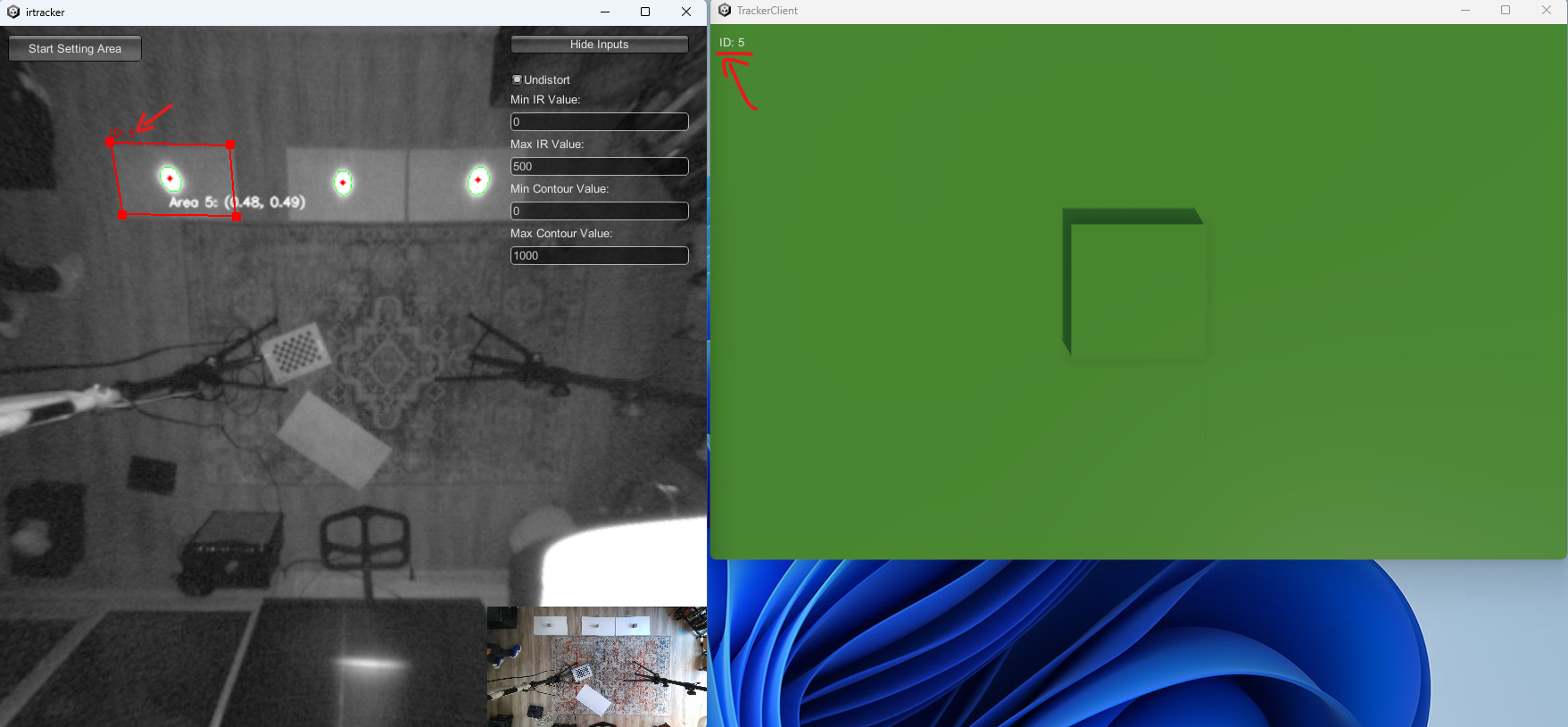
Press 'd' to toggle debug view.
Building
Tracker (Unity project)
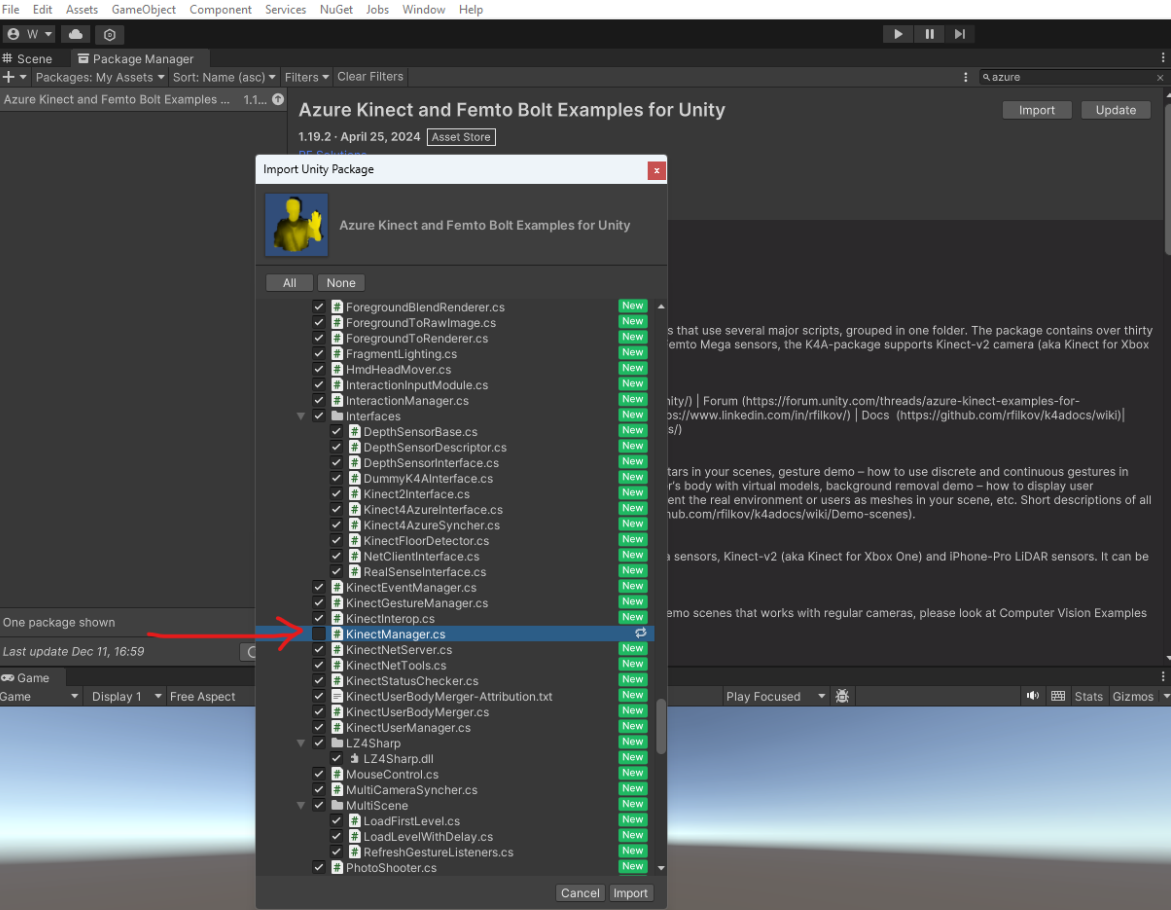
Purchase and install the following Unity packages
Azure Kinect and Femto Bolt Examples for Unity:
OpenCV for Unity:
https://assetstore.unity.com/packages/tools/integration/opencv-for-unity-21088
Important: When importing the Kinect Azure package, do not overwrite the KinectManager class