JDV Open Data
Overview
Tim Berners-Lee, the inventor of the Web and Linked Data initiator, suggested a 5-star deployment scheme for Open Data:
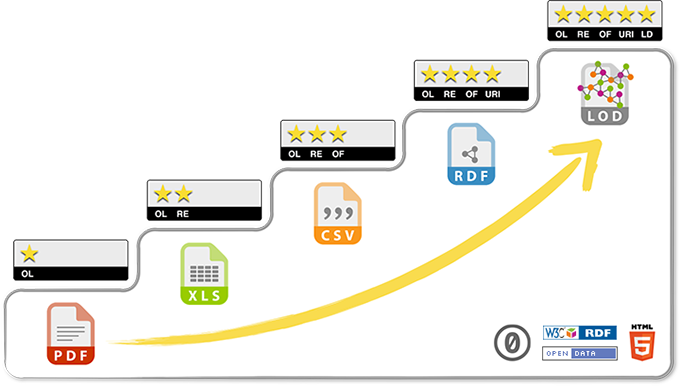
This project uses JBoss Data Virtualization to expose data in Open Data format to achieve the 5 star rating.
The data was gathered in Portal da Transparência, a Brazilian government website that provides open data.
The datasource consists in:
-
One Postgresql database table
- schema.sql - Natureza Jurídica - Legal type of a company in Brazil

-
Two CSV files
- CNAE.csv - Classificação Nacional de Atividades Econômicas - Economic activities of Brazilian companies

- CNPJ.csv - Cadastro Nacional da Pessoa Jurídica - List of Brazilian companies

-
One SOAP Webservice

-
Canonical model


There are two types of installations:
xPaaS Deployment (Openshift 3.5+)
Requirements
- Openshift Container Platform 3.5+
- OC command line interface
- JDBC client
- Git clone of this project
Project setup
Login in oc cli:
oc login <OPENSHIFT URL> -u <USER> -p <PASSWORD>
Create a new Openshift project via web browser. Example: jdv-opendata

After, you need to setup the security constraints:
oc project jdv-opendata
oc create serviceaccount datavirt-service-account
oc policy add-role-to-user view system:serviceaccount:jdv-opendata:datavirt-service-account
oc secrets new datavirt-app-config ./datasources.env
oc secrets link datavirt-service-account datavirt-app-config
Postgresql 9.5 Image setup (CLI)
oc new-app postgresql-persistent \
   --name='postgresql' -lapp=postgresql \
   --param POSTGRESQL_USER=redhat \
   --param POSTGRESQL_PASSWORD=redhat@123 \
   --param POSTGRESQL_DATABASE=redhat \
   --param VOLUME_CAPACITY=1Gi
Postgresql 9.5 Image setup (Console)
-
Add to Project

-
Browse Catalog
- Search for: postgresql-persistent
* Click in Select
-
Image setup. Set the following fields:
- Database Service Name: postgresql
- PostgreSQL Connection Username: redhat
- PostgreSQL Connection Password: redhat@123
- PostgreSQL Database Name: redhat
- Click in Create

-
Continue to overview

-
Create Route. Don't change any field.
* Click in Create


Database setup
To create and populate the database table, just run the script schema.sql using the connection created above.
You can use a port-forward in order to access your service:
oc port-forward $(oc get pod | grep "^postgresql" | awk '{print $1}') 15432:5432

JBoss Data Virtualization 6.3 Image setup (CLI)
oc new-app datavirt63-basic-s2i \
   --name='datavirt-app' -lapp=datavirt-app \
   --param APPLICATION_NAME=datavirt-app \
   --param CONFIGURATION_NAME=datavirt-app-config \
   --param SOURCE_REPOSITORY_URL=https://github.com/kerdlix/jdv-opendata \
   --param SOURCE_REPOSITORY_REF=master \
   --param CONTEXT_DIR=app \
   --param TEIID_USERNAME=teiidUser \
   --param TEIID_PASSWORD=redhat@123 \
   --param MODESHAPE_USERNAME=modeShape \
   --param MODESHAPE_PASSWORD=redhat@123 \
   --param IMAGE_STREAM_NAMESPACE=openshift \
   --param AUTO_DEPLOY_EXPLODED=false
JBoss Data Virtualization 6.3 Image setup (Console)
- Add to Project

- Browse Catalog
- Search for: datavirt63-basic-s2i
* Click in Select
- Image setup. Set the following fields:
- Application Name: datavirt-app
- Git Repository URL: https://github.com/kerdlix/jdv-opendata
- Context Directory: app
- Teiid Username: teiidUser
- Teiid User Password: redhat@123
- ModeShape Username: modeShape
- ModeShape User Password: redhat@123
- Click in Create


- Continue to overview


Database route
Create a new route to expose the JDBC port:

Database connection
You can use a port-forward in order to access your service:
oc port-forward $(oc get pod --show-all=false | grep "^datavirt-app*" | awk '{print $1}') 41000:31000
Use teiidUser/redhat@123 to connect do JBoss Data Virtualization.

JDBC test
You can test your VDB using the following SQL statements:
- select * from NaturezaJuridica;
- select * from NaturezaJuridicaCache;
- select * from CNPJ;
- select * from CNPJCache;
- select * from CNAE;
- select * from CNAECache;
- select * from Empresas;
- select * from EmpresasCache;
- select * from FavorecidosGastosDiretos;
- select * from FavorecidosGastosDiretosCache;
- select * from CountryName where sCountryISOCode = 'BR';
OData test
You can test your VDB via OData using the following URLs (login with teiidUser/redhat@123):
- Host datavirt-app-jdv-opendata.cloudapps.demosas.solutionarchitectsredhat.com.br
Folder/files overview
- database.env
- Used for security constraints and to define environment variables.
- Defines:
- Datasource: java:/NaturezaJuridica
- Resource Adapter: CNPJSource
- Resource Adapter: CNAESource
- Resource Adapter: CountrySource
- app/data/CNAE.csv
- app/data/CNPJ.csv
- database/postgresql/schema.sql
- app/deployments/OpenData.vdb
- Will be copied to EAP deployment folder. If you change the source and generate a new VDB, copy the new file to this folder.
- app/deployments/OpenData.vdb.dodeploy
- Will be copied to EAP deployment folder and will trigger the deployment of the VDB file.
Useful links
- https://github.com/cvanball/jdv-ose-demo
- https://github.com/jboss-openshift/openshift-quickstarts/tree/master/datavirt/dynamicvdb-datafederation
- https://blog.openshift.com/create-s2i-builder-image/
- https://github.com/openshift/source-to-image/blob/master/docs/cli.md
- https://access.redhat.com/documentation/en-us/red_hat_jboss_middleware_for_openshift/3/html/red_hat_jboss_data_virtualization_for_openshift/
- https://access.redhat.com/documentation/en-us/red_hat_jboss_middleware_for_openshift/3/html/red_hat_jboss_enterprise_application_platform_for_openshift/
- https://developers.redhat.com/blog/2016/12/06/red-hat-jboss-data-virtualization-on-openshift-part-1-getting-started/
- http://www.cgu.gov.br/assuntos/transparencia-publica/escala-brasil-transparente/dados-abertos
Possible improvements
- Externalize the internal cache to JBoss Data Grid
- Use 3Scale to control the Open Data API
- Use ansible to automatize the installation process
Standalone Deployment (EAP)
Requirements
- JBoss Developer Studio 8.1.0 with Teiid plugin
- JDK 1.8+
- JBoss EAP 6.4+
Source Code
The project source code is in src directory and consists in a JBoss Developer Studio 8.1.0 GA Teiid Model Project. It has:
- Sources
- For CSV files, Postgresql database and WebService
- Views
- Models for the sources, with joins and materialized view tables
- VDB
- It generates the VDB file OpenData.vdb.
Database setup
To create and populate the database table, just run the script schema.sql
EAP setup
It is necessary to have the following resources created in EAP:
- Datasource
- jndi-name="java:/NaturezaJuridica"
- Example (change the URL/username/password as needed):
    <datasource jndi-name="java:/NaturezaJuridica" pool-name="NaturezaJuridica" enabled="true">
        <connection-url>jdbc:postgresql://postgresql:5432/redhat</connection-url>
        <driver>postgresql</driver>
        <security>
            <user-name>redhat</user-name>
            <password>redhat@123</password>
        </security>
    </datasource>
- Example (change the URL/username/password as needed):
- jndi-name="java:/NaturezaJuridica"
- Resource Adapter
- resource-adapter id="CNPJSource"
- Example (change the Path/file name as needed):
    <resource-adapter id="CNPJSource">
        <module slot="main" id="org.jboss.teiid.resource-adapter.file"/>
        <transaction-support>NoTransaction</transaction-support>
        <connection-definitions>
            <connection-definition class-name="org.teiid.resource.adapter.file.FileManagedConnectionFactory" jndi-name="java:/CNPJSource" enabled="true" pool-name="CNPJSource">
                <config-property name="ParentDirectory">
                    /home/jboss/source/files/FavorecidosGastosDiretos
                </config-property>
            </connection-definition>
        </connection-definitions>
    </resource-adapter>
- Example (change the Path/file name as needed):
- resource-adapter id="CNAESource"
- Example (change the Path/file name as needed):
    <resource-adapter id="CNAESource">
        <module slot="main" id="org.jboss.teiid.resource-adapter.file"/>
        <transaction-support>NoTransaction</transaction-support>
        <connection-definitions>
            <connection-definition class-name="org.teiid.resource.adapter.file.FileManagedConnectionFactory" jndi-name="java:/CNAESource" enabled="true" pool-name="CNAESource">
                <config-property name="ParentDirectory">
                    /home/jboss/source/files/FavorecidosGastosDiretos
                </config-property>
            </connection-definition>
        </connection-definitions>
    </resource-adapter>
- Example (change the Path/file name as needed):
- resource-adapter id="CountrySource"
- Example (change the URL name as needed):
    <resource-adapter id="CountrySource">
        <module slot="main" id="org.jboss.teiid.resource-adapter.webservice"/>
        <transaction-support>NoTransaction</transaction-support>
        <connection-definitions>
            <connection-definition class-name="org.teiid.resource.adapter.ws.WSManagedConnectionFactory" jndi-name="java:/CountrySource" enabled="true" pool-name="CountrySource">
                <config-property name="SecurityType">
                    None
                </config-property>
                <config-property name="EndPoint">
                    http://www.oorsprong.org/websamples.countryinfo/CountryInfoService.wso
                </config-property>
            </connection-definition>
        </connection-definitions>
    </resource-adapter>
- Example (change the URL name as needed):
- resource-adapter id="CNPJSource"
EAP Deployment
Copy the file OpenData.vdb to deployment folder of your EAP instance.
JDBC setup
The VDB will be available at this URL: jdbc:teiid:OpenData@mm://localhost:31000.
JDBC test
You can test your VDB using the following SQL statements:
- select * from NaturezaJuridica;
- select * from NaturezaJuridicaCache;
- select * from CNPJ;
- select * from CNPJCache;
- select * from CNAE;
- select * from CNAECache;
- select * from Empresas;
- select * from EmpresasCache;
- select * from FavorecidosGastosDiretos;
- select * from FavorecidosGastosDiretosCache;
- select * from CountryName where sCountryISOCode = 'BR';
OData test
You can test your VDB via OData using the following URLs (login with teiidUser/redhat@123):
- URL Sample #01
- URL Sample #02
- URL Sample #03
- URL Sample #04
- URL Sample #05
- URL Sample #06
- URL Sample #07
- URL Sample #08
Folder/files overview
Used folders:
- src
- files
- database