rafaelcpalmeida/Countdowner
Small presentation tool that displays a countdown watch and changes the background color to enhance perception of time. Available for macOS and iOS.
Countdowner
Countdowner is a simple tool that I built to help to keep a track on time. It shows a countdown watch and its purpose is to help someone who's presenting something to an audience to extend their available time slot. It is available for both macOS and iOS.
Contents
How it works
From out of the box Countdowner is configured to 30 minutes. If you wish to change this time just press the white cog visible on the rectangle and insert a new time, in seconds.
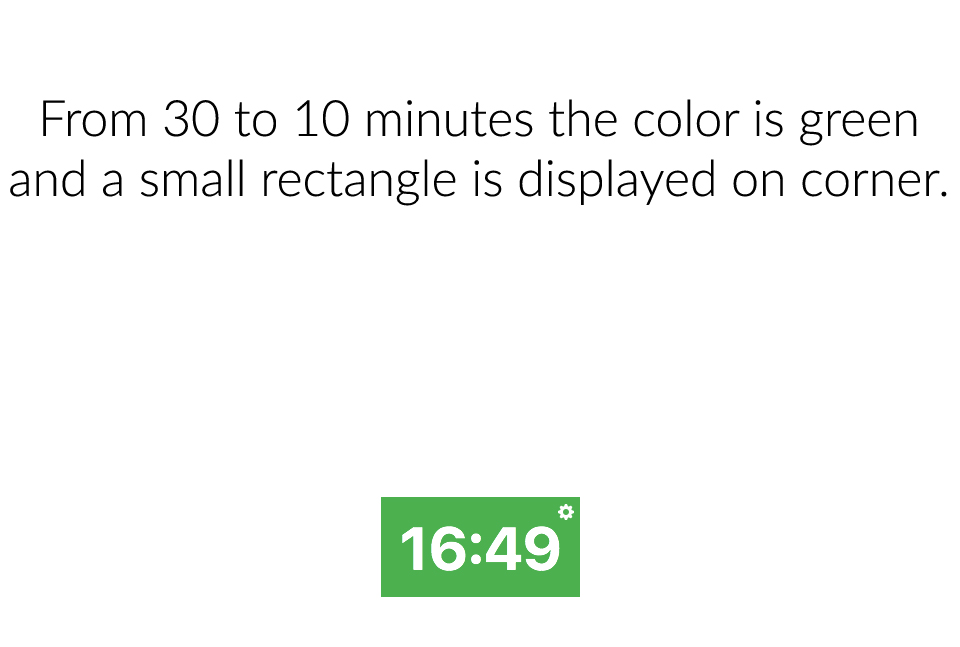
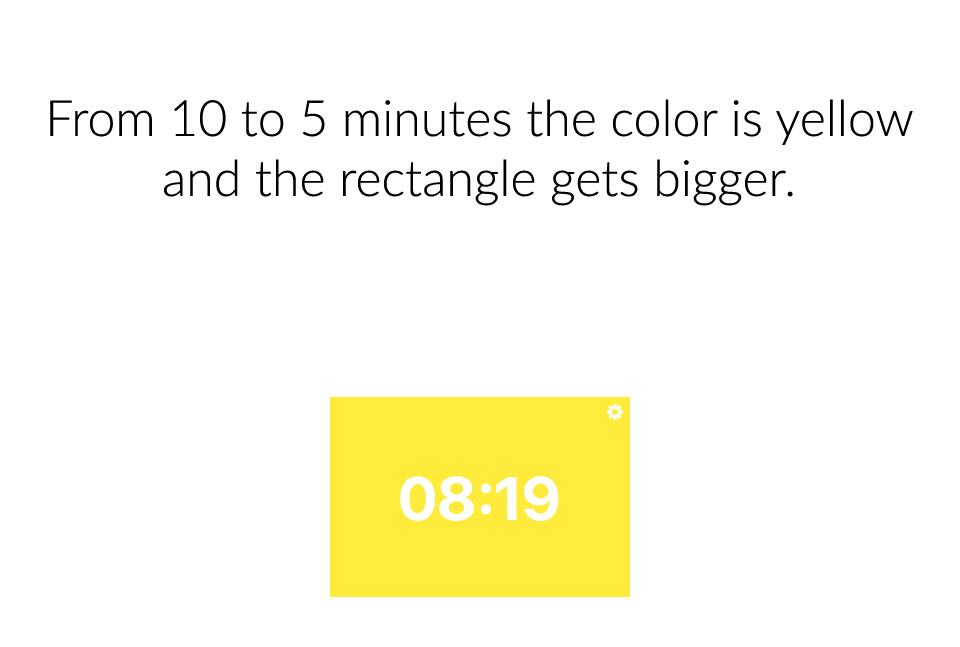
In the images below you can see the workflow for Countdowner:
Step 1
Step 2
Step 3
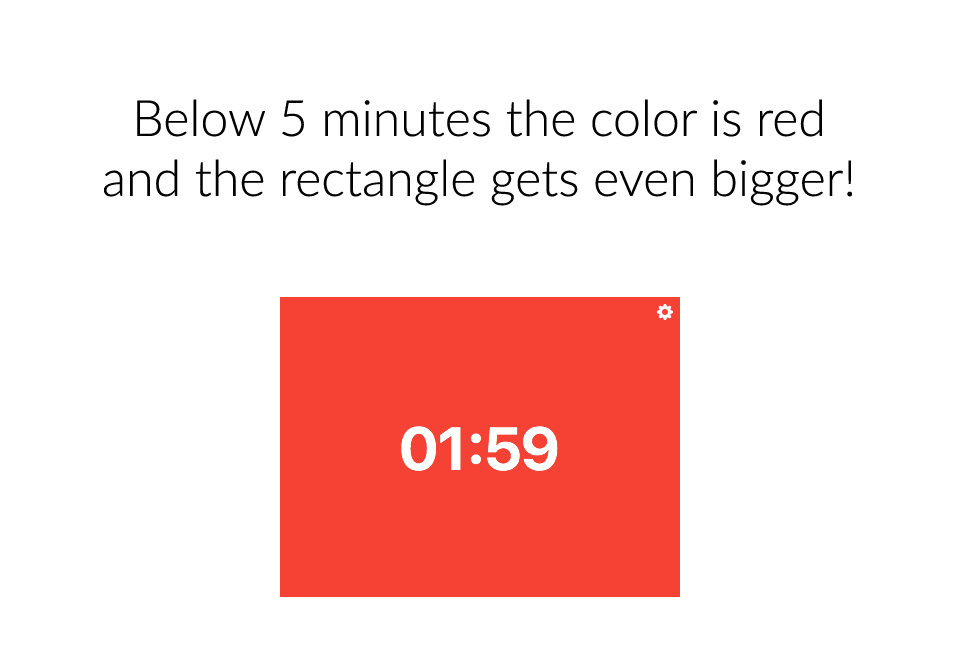
In the images above you saw the flow of the macOS app. In the iOS version the app will fill the whole screen with the correspondent color.
Usage instructions
Below you can find the instructions for macoS and iOS versions.
macOS
- Left click anywhere on the window (except the cog) and the timer will start or stop, if the timer was stopped or running, accordingly.
- Right click anywhere on the window (except the cog) and the timer will be reseted and ready to be executed.
- Click on the cog to set the timer, in seconds
iOS
- Single tap with one finger on the screen and the timer will start or stop, if the timer was stopped or running, accordingly.
- Single tap with two fingers on the screen and the timer will be reseted and ready to be executed.
- Click on the cog to set the timer, in seconds
Compile instructions
In order to compile the app to either macOS or iOS you'll need an Apple Developer account. You can get yours at the Apple Developer Portal. Below you'll find instructions for both platforms.
macOS
- Download the project ZIP or clone this repo in your machine.
- Open the project on Xcode
- Enter the project config page by:
- Clicking the project name just below Xcode window controls
- Go to General tab and just below Targets you'll see two entries:
CountdownerandCountdowner iOS. Make sure to select the first one - Under Identity you'll find a field named
Bundle Identifier. Change it accordingly (i.e.: com.yourName.Countdowner) - Under signing select your Team and, if
Automatically manage signingis selected Xcode will handle signing - Everything should now be ready
- Build and run the app
iOS
- Download the project ZIP or clone this repo in your machine.
- Open the project on Xcode
- Enter the project config page by:
- Clicking the project name just below Xcode window controls
- Go to General tab and just below Targets you'll see two entries:
CountdownerandCountdowner iOS. Make sure to select the second one - Under Identity you'll find a field named
Bundle Identifier. Change it accordingly (i.e.: com.yourName.Countdowner) - Under signing select your Team and, if
Automatically manage signingis selected Xcode will handle signing - Everything should now be ready
- Build and run the app
Known bugs
None at the moment.
Thanks to
- P.J. Onori and Maxim Popov for the beautiful icons
License
MIT
Made with ❤️ in Portugal
Software livre c*ralho! ✌️