precise-simulation/featool-multiphysics
FEATool Multiphysics - "Physics Simulation Made Easy" (Fully Integrated FEA, FEniCS, OpenFOAM, SU2 Solver GUI & Engineering CAE Simulation Platform)
FEATool Multiphysics - Physics Simulation Made Easy

About
FEATool Multiphysics (short for
Finite Element Analysis Toolbox), is a
fully integrated simulation platform for modeling all types of coupled
physics phenomena, continuum mechanics, and engineering problems.
By providing a truly easy-to-use and integrated all-in-one
simulation platform for multi-physics analysis, makes FEATool an
ideal simulation and modeling tool for everyone from students learning
mathematical modeling, to researchers and engineers wishing to explore
new ideas in a simple, easy, and convenient way.
Features
- Fully integrated and easy-to-use Graphical User Interface (GUI)
with built-in tools for- 1D, 2D, and 3D CAD geometry modeling
- Automatic FEA and CFD mesh generation
- State-of-the-art physics solvers
- Post-processing and visualization
- One-click seamless integration to state-of-the-art physics solvers
- Pre-defined equations for
- User-defined and custom PDEs
- Easy equation and expression parser (enter equations and coefficients
like writing equations on paper without any programming) - Process, export, and share results and data online with
ParaView and Plotly web plots - Fully programmable API and scriptable with Python and MATLAB®
(including support for integration and embedding of
simulation apps in custom applications and toolboxes) - Save and export models in
- Binary file format
- MATLAB® m-file format
- Python FEniCS simulation scripts
- GUI playback script format
System Requirements
FEATool is a fully integrated simulation environment, which has been
tested and verified to work with 64-bit Windows, Linux, and MacOS
operating systems with a minimum of 4 GB RAM memory.
Installation
In order to use FEATool, the software must first be installed on the
intended computer system. It is recommended to first uninstall
previous versions before installing/upgrading to a newer version.
Please follow the steps below to install FEATool as a stand-alone
app, or as a MATLAB® toolbox. The installers can be downloaded
directly from the
FEATool releases
and installed manually, or installed from the MATLAB® APPS and Add-On
Toolbar as a toolbox.

Stand-Alone App Installation
Use the steps below to install the app in stand-alone mode
-
First download the installer for your operating system
-
Save it to a directory and run the installer. This will first
download and/or install the application runtime if required (which may
require up to 10 GB space to install), and then the program file will
be extracted. -
When everything has been installed, run the program file to start
FEATool. Please be patient as the application runtime can take some
time to start.
MATLAB® Toolbox Installation
Follow the steps below to install FEATool as a MATLAB® toolbox, and
to enable running MATLAB® simulation m-scripts
-
Download the
FEATool_Multiphysics.mlappinstall
toolbox installation file. -
Then start MATLAB®, press the APPS toolbar button,
and select the Install App button. -
When prompted to choose a toolbox file to install, select the
FEATool_Multiphysics.mlappinstall file and press OK. -
Press the Install button if prompted to "Install to My Apps".
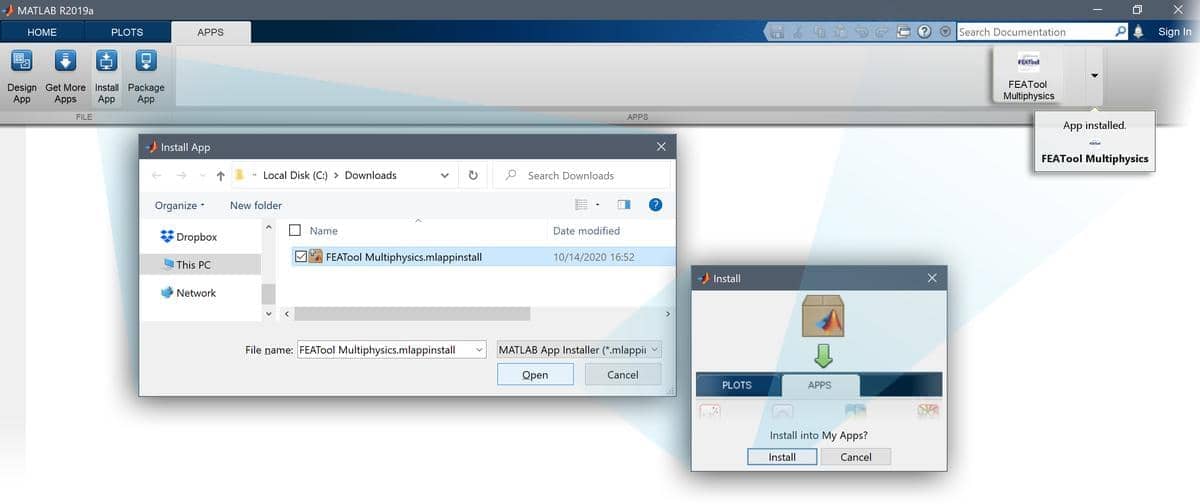
Once the toolbox has been installed, an app icon will be available in
the APPS toolbar to start the FEATool GUI. (Note that MATLAB® may
not show or give any indication of the toolbox installation progress
or completion.)
Tutorials and Examples
Automated modeling tutorials and examples for various multi-physics
applications can be selected and run from the File > Model
Examples and Tutorials menu option in the GUI.
Example script files and simulation models are also available in the
examples folder
of the FEATool program directory. Moreover, new tutorials and
articles are frequently published on the
FEATool blog & technical articles.
Basic Use
FEATool and the GUI has been specifically designed to be as easy to
use as possible, and making learning multiphysics simulation by
experimentation easy.
The standard modeling process is divided into six different steps or modes
- Geometry - Definition of the geometry to be modeled
- Grid - Subdivision of the geometry into smaller grid cells
suitable for computation - Equation - Specification of physics, material parameters, and coefficients
- Boundary - Boundary conditions specify how the model interacts
with the surrounding environment (outside of the geometry) - Solve - Solution and simulation of the defined model problem
- Post - Visualization and postprocessing of simulation results
These modes can be accessed by clicking on the corresponding buttons
in left hand side Mode toolbar. Each mode has specialized and
different Tools available in the toolbar that will be activated when
selected. Additional and advanced mode options are also be available
in the mode menus.
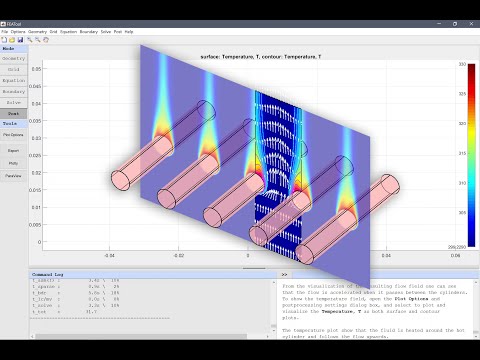
Basic use and how to set up and model coupled fluid flow and
temperature in a heat exchanger is explained in the
linked video tutorial
(click on the image below to start the tutorial).
Documentation
The
FEATool Documentation
is available online, and also by selecting the corresponding option in
the Help menu of the GUI.
License
(C) Copyright 2013-2026 by Precise Simulation Limited.
All Rights Reserved.
FEATool Multiphysics™ is a trademark of Precise Simulation
Limited. MATLAB® is a registered trademark of The MathWorks,
Inc. OPENFOAM® is a registered trade mark of OpenCFD Limited, producer
and distributor of the OpenFOAM® software. All other trademarks are
the property of their respective owners. Precise Simulation and its
products are not affiliated with, endorsed, or sponsored by these
trademark owners.
The license agreement for using FEATool Multiphysics™ is included with
the distribution and can also be viewed by selecting
About FEATool... > License Agreement from the Help menu in the
application.
Carefully read the license terms and conditions before installing or
using the programs or documentation. Installing or using the programs
means you have accepted and agree to be bound by the terms and
conditions of this agreement. if you do not accept them, uninstall,
remove and completely delete the programs and documentation.