janusjerom/HacktoberFest2021
Promotes javascript for web development
HacktoberFest-2021

Table of Contents
- HacktoberFest-2021
- Table of Contents
- Steps to Collaborate
- This is what we just done(summary)
- Github technical terms and meaning
- Helpful Links
A repository to host javaScript projects
Start by setting your git machine install it
Steps to Collaborate
Fork this repository
Fork this repository by clicking on the fork button on the top right corner of this page.
This will create a copy of this repository in your account.
why we are doing this?
well, you dont have access to main repo, so you create a copy of it on you personal github account
Clone this repository
Now clone the forked repository to your machine. Go to your GitHub account, open the forked repository, click on the code button and then click the copy to clipboard icon.
Open a terminal and run the following git command:
git clone "url you just copied"
where "url you just copied" (without the quotation marks) is the url to this repository (your fork of this project). See the previous steps to obtain the url.
For example:
https://github.com/your-name/HacktoberFest-2021.git
where your-name is your GitHub username. Here you're copying the contents of the HacktoberFest-2021 repository on GitHub to your computer.
Before cloning the repository you just make sure that you have changed the directory to Desktop or to some other locations, To change the directory to Desktop run the following command:
cd Desktop
Create a branch
Change to the repository directory on your computer (if you are not already there):
cd HacktoberFest-2020
Now create a branch using the git checkout command:
git checkout -b <your-new-branch-name>
For example:
git checkout -b add-john-doe
(The name of the branch does not need to have the word add in it, but it's a reasonable thing to include because the purpose of this branch is to add your name to a list.)
Commit your changes
Create a file, add your changes. See CONTRIBUTING.md
Now, go to the project directory and execute the command git status, you'll see there are changes.
Add those changes to the branch you just created using the git add command:
git add .
Now commit those changes using the git commit command:
git commit -m "Added new <file-name>"
Replace <file-name> to your file name.
For example:
git commit -m "Added Sum-of-two-numbers.html"
Push changes to github
Push your changes using the command git push:
git push origin <add-your-branch-name>
replacing <add-your-branch-name> with the name of the branch you created earlier.
Submit your changes for review
If you go to your repository on GitHub, you'll see a Compare & pull request button. Click on that button.
Now submit the pull request.
Soon I'll be merging all your changes into the master branch of this project. You will get a notification email once the changes have been merged.
Now submit the pull request.
This is what we just done(summary)
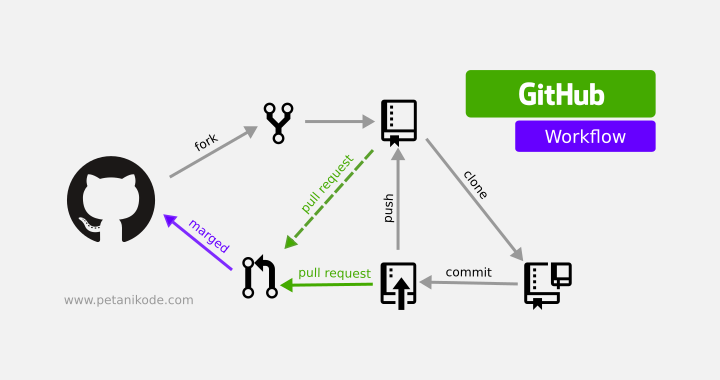
github technical terms and meaning
| Terms | meaning |
|---|---|
| repsitory | a version control enabled folder |
| directory | folder |
| git | a tool helps to version control a set of files |
| github | a website used to share and collaborate on software projects |
Helpful Links
- Visualize how git tool works
- Git Guide
- https://nvie.com/posts/a-successful-git-branching-model/
- a video demo on collaborting on github - worth watching
- cheatsheet - use this if you are using terminal/cmd to talk to git
Happy coding
